Install Chatterbox TTS on Windows with Conda
Introduction
Chatterbox Multilingual V3 is the latest general-purpose multilingual TTS model in the Chatterbox family. It keeps the same 0.5B model size while improving speaker similarity, reducing hallucinations, and producing more natural, conversational speech across languages.
GitHub: https://github.com/resemble-ai/chatterbox
Hugging Face: https://hf.co/ResembleAI
Demo: https://hf.co/spaces/ResembleAI/Chatterbox-Multilingual-TTS
Docs: https://docs.resemble.ai/voice-generation/text-to-speech
Audio Samples: https://resemble-ai.github.io/chatterbox_demopage/
Prerequisites
System requirements:
- Operating System: Windows 10/11 (64-bit), macOS, or Linux (Debian/Ubuntu).
- Python: version >= 3.10 required
- Disk Space: 10GB+ recommended (for dependencies and model cache). At least 400 MB for Miniconda; 3 GB+ for full Anaconda.
- The GPU is optional but HIGHLY Recommended for Performance
- Internet: For downloading dependencies and models from Hugging Face Hub.
| Environment | Run this Command |
|---|---|
| CPU only | pip3 install torch torchvision |
| CUDA 11.8 | pip3 install torch torchvision torchaudio –index-url https://download.pytorch.org/whl/cu118 |
| CUDA 12.1 | pip3 install torch torchvision torchaudio –index-url https://download.pytorch.org/whl/cu121 |
| CUDA 12.6 | pip3 install torch torchvision torchaudio –index-url https://download.pytorch.org/whl/cu126 |
| CUDA 12.8 | pip3 install torch torchvision torchaudio –index-url https://download.pytorch.org/whl/cu128 |
| CUDA 13.0 | pip3 install torch torchvision torchaudio –index-url https://download.pytorch.org/whl/cu130 |
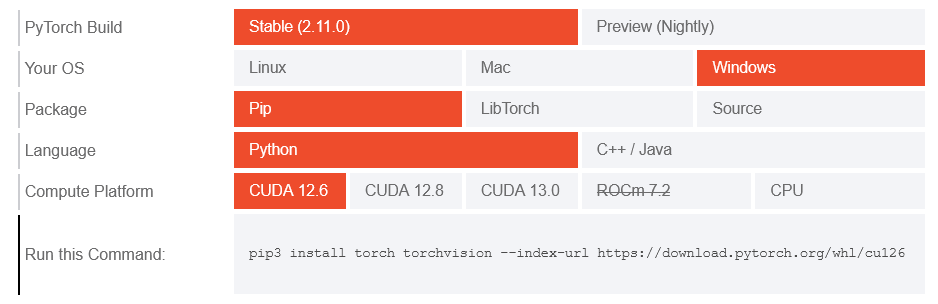
Note: CUDA version check by command
nvidia-smi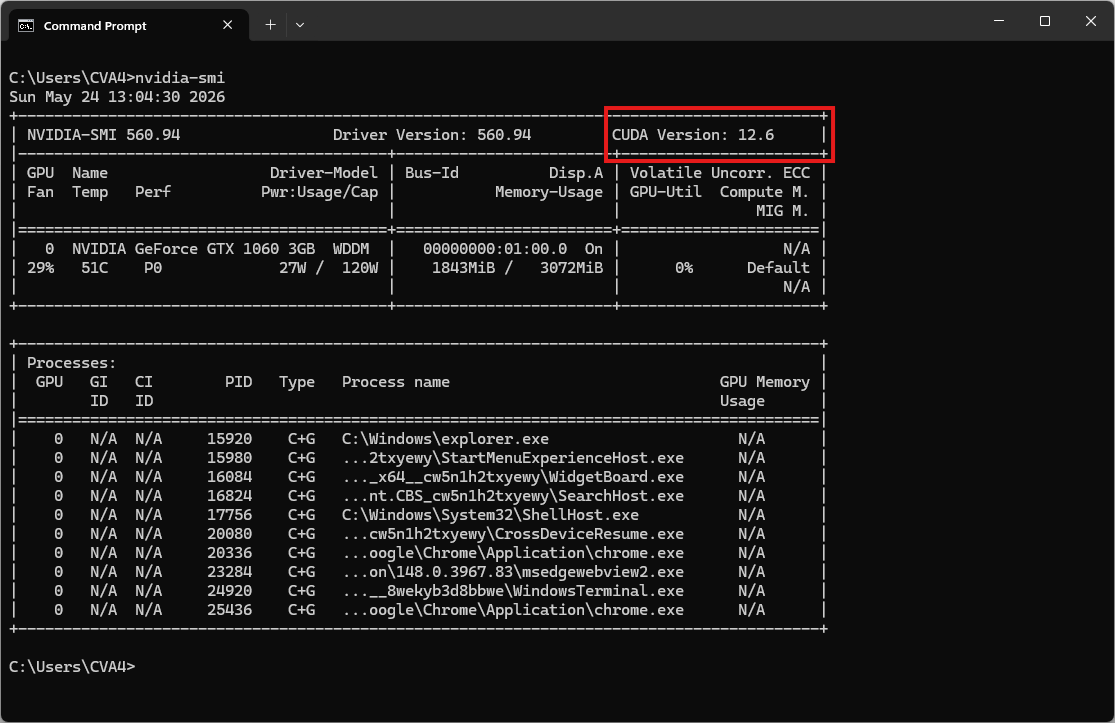
Video tutorial
Step 1. Install Miniconda Package
Download Miniconda: https://www.anaconda.com/download/success?reg=skipped
Direct link: https://anaconda.com/api/installers/Miniconda3-latest-Windows-x86_64.exe
Step 2. Create Conda Environment
Create a conda environment:
name: chatterbox
channels:
  - conda-forge
  - defaults
dependencies:
  # Python version >= 3.11 required
  - python=3.11

  - pip
  - pip:
      # PyTorch CUDA 12.6 wheels
      - --extra-index-url https://download.pytorch.org/whl/cu126
      - torch
      - torchaudio

      # Chatterbox TTS
      - chatterbox-tts
      - "resemble-perth @ git+https://github.com/resemble-ai/Perth.git@master"
Activate conda environment:
conda env create -f environment.yml
conda activate chatterbox
Step 3. Create a Python Script
Create a file named chatterbox_test.py:
import torchaudio as ta
import torch
from chatterbox.tts_turbo import ChatterboxTurboTTS

# Automatically detect the best available device
if torch.cuda.is_available():
    device = "cuda"
elif torch.backends.mps.is_available():
    device = "mps"
else:
    device = "cpu"

print(f"Using device: {device}")

# Load the Turbo model
model = ChatterboxTurboTTS.from_pretrained(device)

# Generate with Paralinguistic Tags
text = "Hi there, Sarah here from MochaFone calling you back [chuckle], have you got one minute to chat about the billing issue?"

# Generate audio
wav = model.generate(text)

ta.save("test.wav", wav, model.sr)
Run it:
python chatterbox_test.pyThe result will be the audio file test.wav
Launch the local web UI
Try Chatterbox without coding:
python gradio_tts_app.pyOpen your browser and navigate to http://127.0.0.1:7860. The system will automatically download the required model weights from HuggingFace during this first run.
Note: You can download the gradio_tts_app.py file here.