Cài đặt Chatterbox trên Windows bằng Conda
Giới thiệu
Chatterbox Multilingual V3 là mô hình TTS đa ngôn ngữ đa năng mới nhất trong dòng sản phẩm Chatterbox. Nó vẫn giữ nguyên kích thước mô hình 0.5B nhưng cải thiện khả năng nhận diện giọng nói tương đồng với người nói, giảm hiện tượng ảo giác và tạo ra giọng nói tự nhiên, giống như hội thoại hơn trên nhiều ngôn ngữ.
GitHub: https://github.com/resemble-ai/chatterbox
Hugging Face: https://hf.co/ResembleAI
Demo: https://hf.co/spaces/ResembleAI/Chatterbox-Multilingual-TTS
Docs: https://docs.resemble.ai/voice-generation/text-to-speech
Audio Samples: https://resemble-ai.github.io/chatterbox_demopage/
Yêu cầu hệ thống
- Hệ điều hành: Windows 10/11 (64-bit), macOS hoặc Linux (Debian/Ubuntu).
- Python: Yêu cầu phiên bản >= 3.10
- Dung lượng ổ cứng: Khuyến nghị 10GB trở lên (cho các thư viện phụ thuộc và bộ nhớ cache mô hình). Ít nhất 400 MB cho Miniconda; 3 GB trở lên cho Anaconda đầy đủ.
- GPU: là tùy chọn nhưng RẤT KHUYÊN DÙNG để tăng hiệu suất
- Internet: Để tải xuống các thư viện phụ thuộc và mô hình từ Hugging Face Hub.
| Environment | Run this Command |
|---|---|
| CPU only | pip3 install torch torchvision |
| CUDA 11.8 | pip3 install torch torchvision torchaudio –index-url https://download.pytorch.org/whl/cu118 |
| CUDA 12.1 | pip3 install torch torchvision torchaudio –index-url https://download.pytorch.org/whl/cu121 |
| CUDA 12.6 | pip3 install torch torchvision torchaudio –index-url https://download.pytorch.org/whl/cu126 |
| CUDA 12.8 | pip3 install torch torchvision torchaudio –index-url https://download.pytorch.org/whl/cu128 |
| CUDA 13.0 | pip3 install torch torchvision torchaudio –index-url https://download.pytorch.org/whl/cu130 |
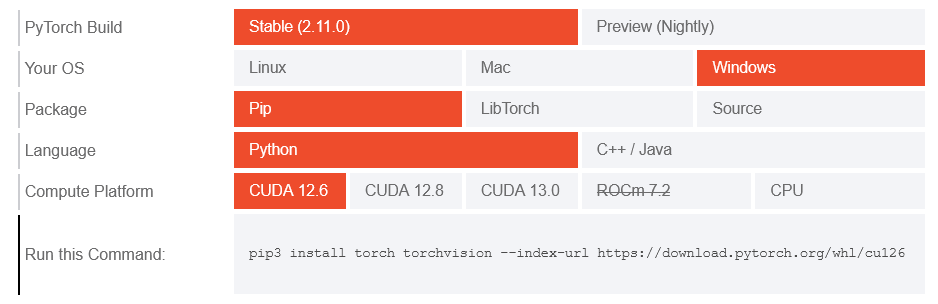
Lưu ý: Kiểm tra phiên bản CUDA bằng lệnh
nvidia-smi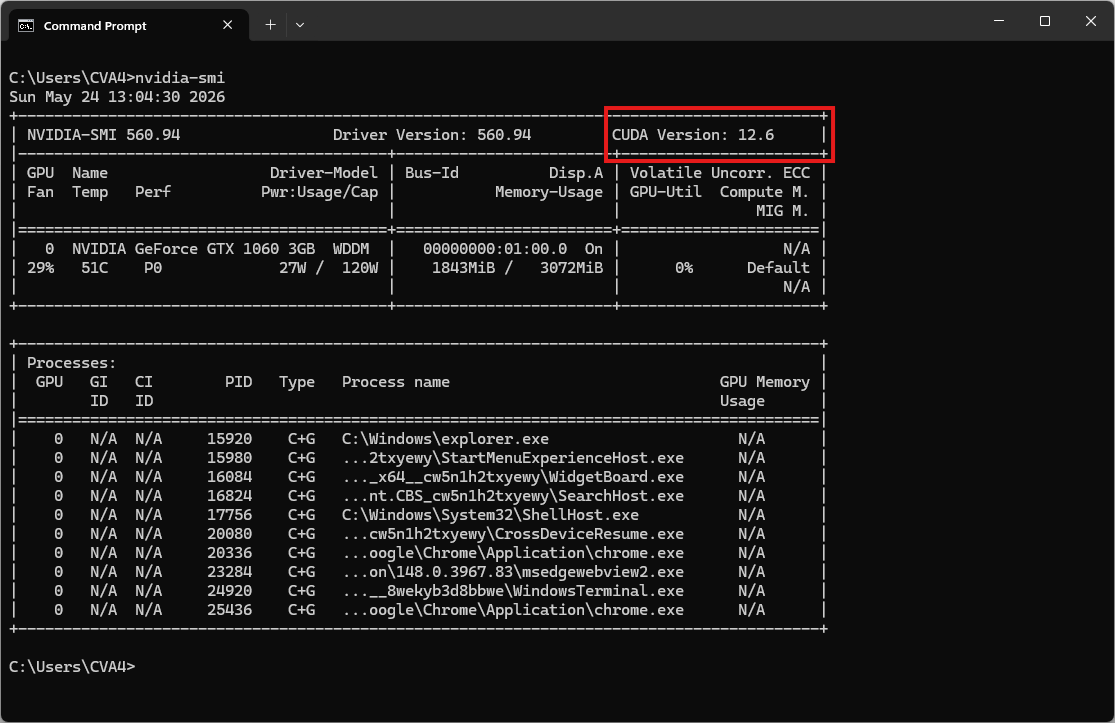
Video hướng dẫn
Bước 1. Cài đặt Miniconda
Tải xuống Miniconda: https://www.anaconda.com/download/success?reg=skipped
Liên kết trực tiếp: https://anaconda.com/api/installers/Miniconda3-latest-Windows-x86_64.exe
Bước 2. Tạo môi trường Conda
Tạo tệp environment.yml:
name: chatterbox
channels:
  - conda-forge
  - defaults
dependencies:
  # Python version >= 3.11 required
  - python=3.11

  - pip
  - pip:
      # PyTorch CUDA 12.6 wheels
      - --extra-index-url https://download.pytorch.org/whl/cu126
      - torch
      - torchaudio

      # Chatterbox TTS
      - chatterbox-tts
      - "resemble-perth @ git+https://github.com/resemble-ai/Perth.git@master"
Kích hoạt môi trường conda:
conda env create -f environment.yml
conda activate chatterbox
Bước 3. Tạo một tệp Python
Tạo một tệp có tên chatterbox_test.py:
import torchaudio as ta
import torch
from chatterbox.tts_turbo import ChatterboxTurboTTS

# Automatically detect the best available device
if torch.cuda.is_available():
    device = "cuda"
elif torch.backends.mps.is_available():
    device = "mps"
else:
    device = "cpu"

print(f"Using device: {device}")

# Load the Turbo model
model = ChatterboxTurboTTS.from_pretrained(device)

# Generate with Paralinguistic Tags
text = "Hi there, Sarah here from MochaFone calling you back [chuckle], have you got one minute to chat about the billing issue?"

# Generate audio
wav = model.generate(text)

ta.save("test.wav", wav, model.sr)
Chạy thử:
python chatterbox_test.pyKết quả sẽ là tệp âm thanh test.wav
Khởi chạy Giao diện Web (Gradio Web UI)
Sau khi cài đặt xong, bạn không cần viết code mà có thể bật ngay một giao diện Web UI cục bộ bằng lệnh:
python gradio_tts_app.pyMở trình duyệt và truy cập vào địa chỉ http://127.0.0.1:7860 để bắt đầu sử dụng. Hệ thống sẽ tự động tải các file Model (Trọng số cấu hình mã nguồn) từ HuggingFace trong lần đầu chạy.
Lưu ý: Bạn có thể tải xuống tệp gradio_tts_app.py tại đây.