Install Sopro TTS on Windows with Conda
Introduction
Sopro (from the Portuguese word for “breath/blow”) is a lightweight voice-cloning text-to-speech model family. This repo ships sopro-v2-turbo, a 120M-parameter open model that streams, runs comfortably on a laptop CPU or in the browser, and reaches SOTA-level intelligibility against much larger systems.
GitHub: https://github.com/samuel-vitorino/sopro
Hugging Face: https://hf.co/samuel-vitorino/sopro-v2-turbo
Demo: https://hf.co/spaces/samuel-vitorino/sopro-v2-turbo-tts
Example: https://samuel-vitorino.github.io/sopro/
Main features:
- 120M parameters
- English, European Portuguese, French, and German
- Streaming with ~300 ms time-to-first-audio on a laptop CPU
- Zero-shot voice cloning from 5-20 seconds of reference audio
- 0.24 RTF offline / 0.21 RTF streaming on an M3 CPU, 0.07 RTF on an H100
- Runs in the browser via an ONNX runtime
Prerequisites
System requirements:
- Operating System: Windows 10/11 (64-bit), macOS, or Linux (Debian/Ubuntu).
- Python: version >= 3.10 required
- Disk Space: 4GB+ recommended (for dependencies and model cache). At least 400 MB for Miniconda; 3 GB+ for full Anaconda.
- The GPU is optional. It runs smoothly on a laptop CPU.
- Internet: For downloading dependencies and models from Hugging Face Hub.
| Environment | Run this Command |
|---|---|
| CPU only | pip3 install torch torchvision |
| CUDA 11.8 | pip3 install torch torchvision torchaudio –index-url https://download.pytorch.org/whl/cu118 |
| CUDA 12.1 | pip3 install torch torchvision torchaudio –index-url https://download.pytorch.org/whl/cu121 |
| CUDA 12.6 | pip3 install torch torchvision torchaudio –index-url https://download.pytorch.org/whl/cu126 |
| CUDA 12.8 | pip3 install torch torchvision torchaudio –index-url https://download.pytorch.org/whl/cu128 |
| CUDA 13.0 | pip3 install torch torchvision torchaudio –index-url https://download.pytorch.org/whl/cu130 |
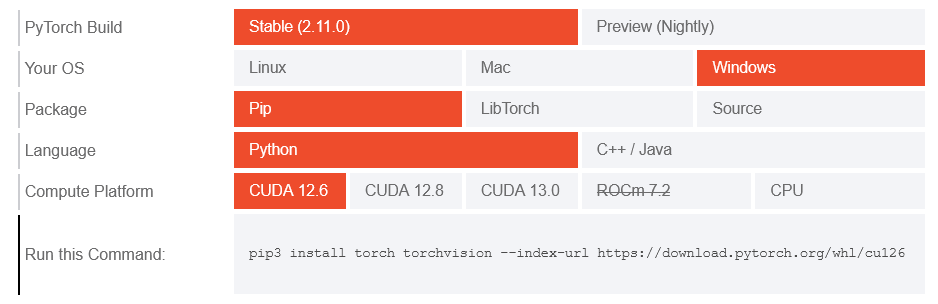
Note: CUDA version check by command
nvidia-smi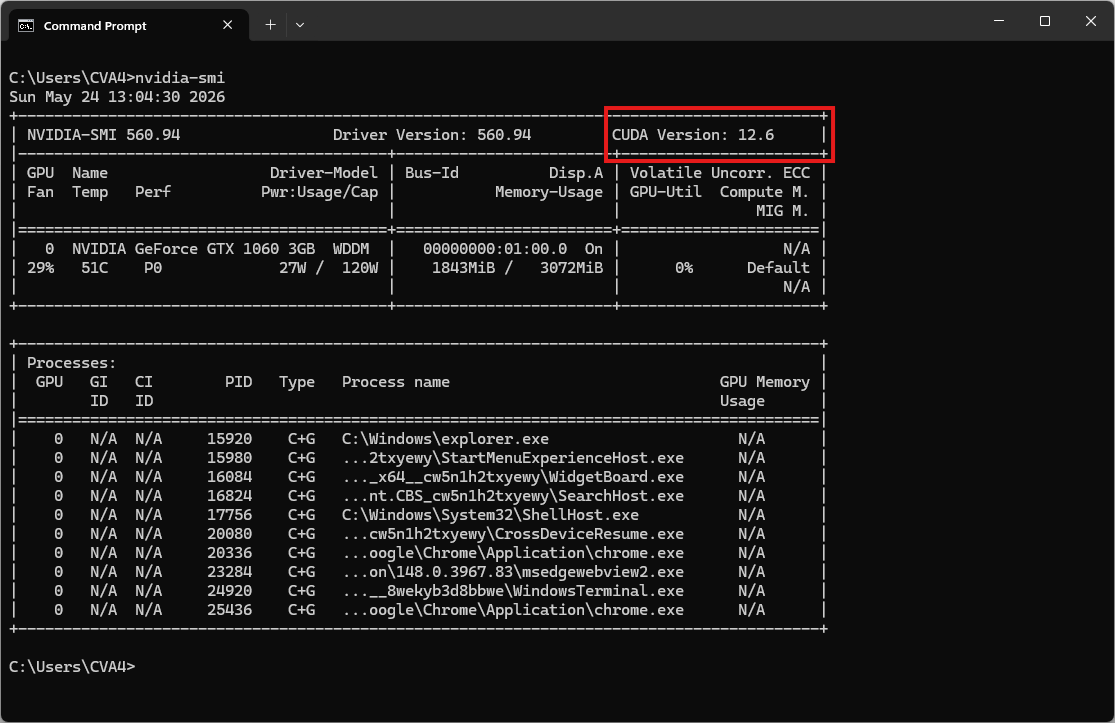
Video tutorial
Step 1. Install Miniconda Package
Download Miniconda: https://www.anaconda.com/download/success?reg=skipped
Direct link: https://anaconda.com/api/installers/Miniconda3-latest-Windows-x86_64.exe
How to Install Miniconda on Windows
Step 2. Create Conda Environment
Create a conda environment:
name: soprotts
channels:
  - conda-forge
  - defaults
dependencies:
  # Python version (requires >= 3.10)
  - python=3.10

  - pip
  - pip:
      # PyTorch CUDA is optional. It runs smoothly on a laptop CPU.
      # - --extra-index-url https://download.pytorch.org/whl/cu126
      - torch
      - torchaudio

      # Install SoproTTS directly from GitHub.
      - git+https://github.com/samuel-vitorino/sopro.git
Activate conda environment:
conda env create -f environment.yml
conda activate soprotts
Download the reference audio
curl -L -O "https://github.com/thewh1teagle/zipvoice-onnx/releases/download/model-files-v1.0/prompt_english_female1.wav"Reference audio sample voice: prompt_english_female1.wav
Step 3. Run the Inference
Now, run some examples.
soprotts "Sopro is a lightweight 120 million parameter text-to-speech model that streams and runs on device." --ref prompt_english_female1.wav --out out.wavThe result will be the audio file out.wav
Local demo (web interface)
Run the model and open the demo with one command:
soprotts serveOpen your browser and navigate to http://127.0.0.1:7860. The system will automatically download the required model weights from HuggingFace during this first run.