Install OPPO CuteTTS TTS with Conda
Introduction
CuteTTS: a lightweight continuous autoregressive TTS model that runs efficiently on GPUs, CPUs, and Apple silicon.
GitHub: https://github.com/OPPO-Mente-Lab/CuteTTS
Hugging Face: https://hf.co/OPPOer/CuteTTS
Hugging Face: https://hf.co/OPPOer/CuteTTS-distill
Demo: https://hf.co/spaces/hugging-apps/cutetts-demo
Paper: https://arxiv.org/abs/2608.08638
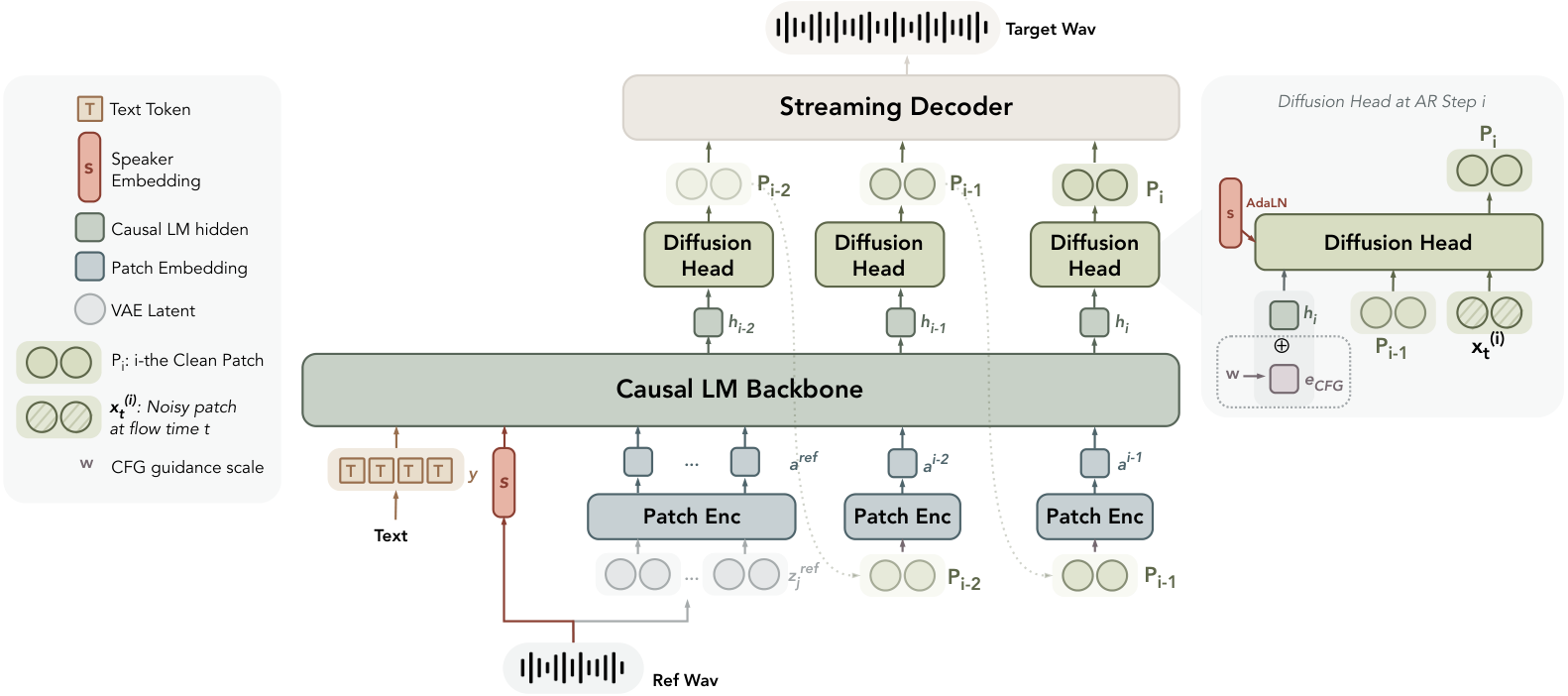
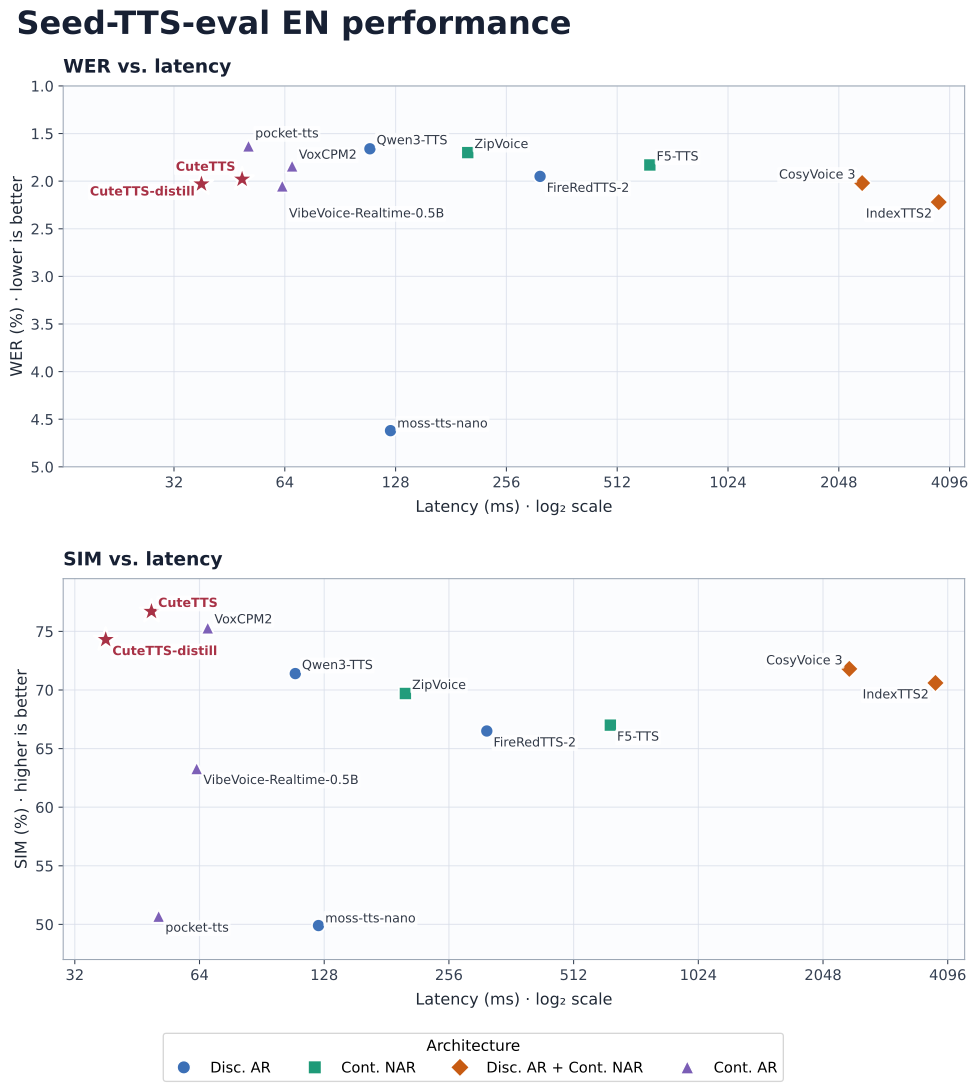
- A lightweight (~230M-parameter) continuous autoregressive TTS model that runs efficiently on GPUs, CPUs, and Apple silicon.
- Ultra-low latency:
~40 msto the first audio chunk and a throughput of ~9× real time on an NVIDIA RTX 4090. - Excellent speech quality and voice cloning performance.
- Web demo, Python API, and CLI.
- Multilingual support: English, Chinese, French, German, and Spanish.
Prerequisites
System requirements:
- Operating System: Windows 10/11 (64-bit), macOS, or Linux (Debian/Ubuntu).
- Python: version >= 3.10 required
- Disk Space: 10GB+ recommended (for dependencies and model cache). At least 400 MB for Miniconda; 3 GB+ for full Anaconda.
- The GPU is optional but HIGHLY Recommended for Performance.
- Internet: For downloading dependencies and models from Hugging Face Hub.
| Requirements | CPU | RAM |
|---|---|---|
| Minimum | Intel Core i3 or AMD Ryzen 3 | 8 GB |
| Recommended | Intel Core i5 or AMD Ryzen 5 | 16 GB |
| High-performance | Intel Core i7/i9 or AMD Ryzen 7/9 | 32 GB |
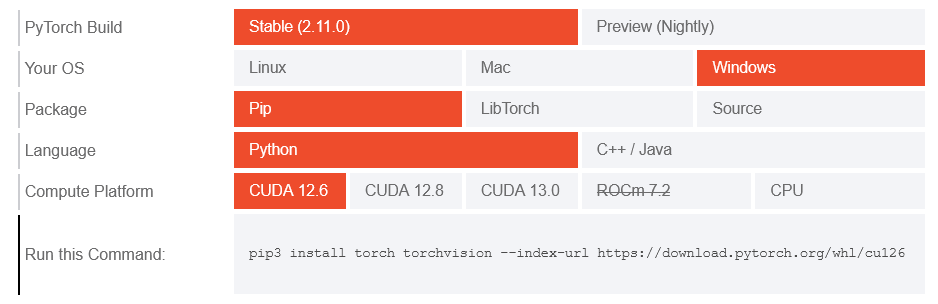
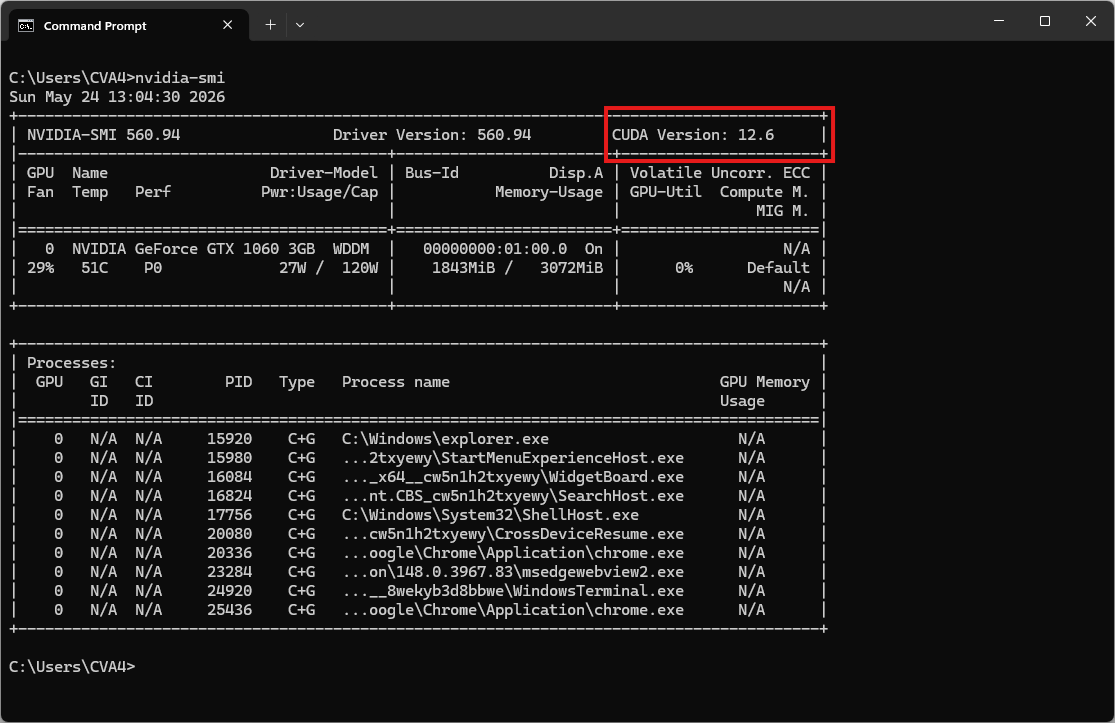
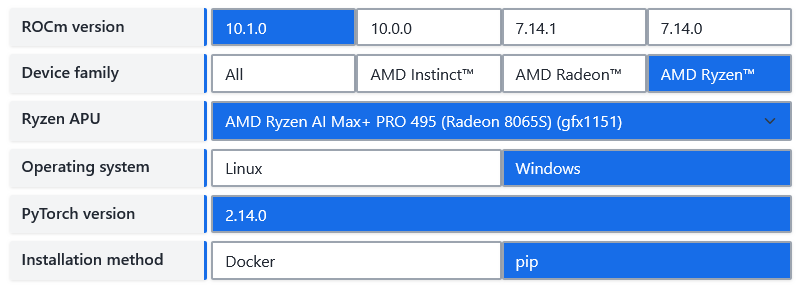
| Environment | Run this Command |
|---|---|
| CPU only | pip3 install torch torchvision |
| Apple Silicon | pip3 install torch torchvision |
| AMD ROCm | Install PyTorch for ROCm |
| CUDA 11.8 | pip3 install torch torchvision torchaudio --index-url https://download.pytorch.org/whl/cu118 |
| CUDA 12.1 | pip3 install torch torchvision torchaudio --index-url https://download.pytorch.org/whl/cu121 |
| CUDA 12.6 | pip3 install torch torchvision torchaudio --index-url https://download.pytorch.org/whl/cu126 |
| CUDA 12.8 | pip3 install torch torchvision torchaudio --index-url https://download.pytorch.org/whl/cu128 |
| CUDA 13.0 | pip3 install torch torchvision torchaudio --index-url https://download.pytorch.org/whl/cu130 |
Video tutorial
Coming soon!
Step 1. Install Miniconda Package
Download Miniconda: https://www.anaconda.com/download/success?reg=skipped
Direct link: https://anaconda.com/api/installers/Miniconda3-latest-Windows-x86_64.exe
Direct link: https://repo.anaconda.com/miniconda/Miniconda3-latest-Windows-arm64.exe
How to Install Miniconda on Windows
Step 2. Create Conda Environment
Create an environment.yml file
name: cutetts
channels:
- conda-forge
- defaults

dependencies:
# Python version (requires >= 3.10)
- python=3.12

- pip
- pip:
    # PyTorch CPU only
    - torch
    - torchaudio

    # Install CuteTTS directly from GitHub.
    - git+https://github.com/OPPO-Mente-Lab/CuteTTS.git

    # Download the model from Hugging Face / ModelScope
- huggingface_hubActivate conda environment:
conda env create -f environment.yml
conda activate cutetts
Clone and install CuteTTS from source (run after activating the environment)
git clone https://github.com/OPPO-Mente-Lab/CuteTTS.git
cd CuteTTS
Download weights
Download CuteTTS or CuteTTS-distill into ./model:
# Create the model directory
mkdir model

# Download the CuteTTS model (or CuteTTS-distill for lower-end hardware)
hf download OPPOer/CuteTTS --local-dir ./model/CuteTTS
hf download OPPOer/CuteTTS-distill --local-dir ./model/CuteTTS-distill
Directory structure
The expected directory structure is:
D:\cute\
├── CuteTTS\
│   ├── assets\
│   ├── LICENSES\
│   ├── model\
│   │   ├── CuteTTS\
│   │   └── CuteTTS-distill\
│   ├── src\
│   │   └── cutetts\
│   ├── .gitignore
│   ├── LICENSE
│   ├── NOTICE
│   ├── README.md
│   ├── README_zh.md
│   ├── infer.py
│   └── pyproject.toml
├── cute_test.py
└── environment.yml
Step 3. Run the Inference
Command line
# sanity check
cutetts --help
usage: cutetts [-h] --model-dir MODEL_DIR --text TEXT [--mode {tts,voice_clone}] [--reference-audio REFERENCE_AUDIO] [--output OUTPUT] [--device DEVICE] [--cfg-strength CFG_STRENGTH]
[--diffusion-steps DIFFUSION_STEPS] [--diffusion-sway-coefficient DIFFUSION_SWAY_COEFFICIENT] [--max-decode-length MAX_DECODE_LENGTH] [--seed SEED] [--no-progress]
Generate speech with CuteTTS.
options:
-h, --help show this help message and exit
--model-dir MODEL_DIR
--text TEXT
--mode {tts,voice_clone}
--reference-audio REFERENCE_AUDIO
--output OUTPUT
--device DEVICE Inference device: auto, cuda, mps, or cpu (default: auto).
--cfg-strength CFG_STRENGTH
--diffusion-steps DIFFUSION_STEPS
--diffusion-sway-coefficient DIFFUSION_SWAY_COEFFICIENT
--max-decode-length MAX_DECODE_LENGTH
--seed SEED
--no-progressNow, run the basic example script to synthesize speech:
cutetts --model-dir ./model/CuteTTS --mode tts --text "The voice generated by this model sounds amazing!" --output tts.wavThe result will be the audio file tts.wav
Test Voice Cloning
cutetts --model-dir ./model/CuteTTS --mode voice_clone --reference-audio ./assets/default_reference.wav --text "The voice generated by this model sounds amazing!" --output clone.wavPython Script
Create a file named cute_test.py:
from cutetts import CuteTTS
import soundfile as sf

model = CuteTTS.from_pretrained("./CuteTTS/model/CuteTTS", device="auto")
result = model.generate("The voice generated by this model sounds amazing!", mode="tts")
sf.write("tts.wav", result.waveform.squeeze(0).numpy(), result.sample_rate)

clone = model.generate(
    "The voice generated by this model sounds amazing!",
    mode="voice_clone",
    reference_audio="./CuteTTS/assets/default_reference.wav",
)
sf.write("clone.wav", clone.waveform.squeeze(0).numpy(), clone.sample_rate)
Run the script to clone voice:
python cute_test.pyThe result will be the audio file clone.wav
Web demo
Try CuteTTS without coding:
cutetts-demo --model-dir ./model --device auto --host 127.0.0.1 --port 7860Open your browser and navigate to http://127.0.0.1:7860. The system will automatically download the required model weights from HuggingFace during this first run.